Voice chat
The same voice nodes work in two ways:
- EOS lobbies with Voice Chat get an EOS voice room. Voice works in the lobby, in the match and through a host migration.
- Everything else (Steam lobbies, or EOS lobbies without Voice Chat) uses the engine's own VoIP in the match. Voice then goes through the match's net connection, so it only works in the match.
When the current lobby has Voice Chat, the EOS room is used and match VoIP is kept off, so no one is heard twice.
EOS lobbies
Tick Voice Chat in the lobby settings of CreateCrossplayLobby. Every member joins the voice room with the lobby and leaves it with the lobby. The room does not go through the match host, so voice keeps working when the match starts and when the host changes. Steam players talk too, since they are logged in to EOS.
Project Settings → Plugins → Crossplay - Epic Online Services → Voice → Enable Voice Chat (on by default) creates the EOS platform with voice. When EOSCore or OnlineSubsystemEOS creates the platform, this setting is ignored: enable voice there instead, with Enable RTC in EOSCore's EOS configuration.
On Windows, EOS voice loads xaudio2_9redist.dll from the engine, and the plugin stages it with the game.
Matches (engine VoIP)
Turn on the engine's VoIP in the config:
[OnlineSubsystem]
bHasVoiceEnabled=true

[Voice]
bEnabled=true
[/Script/Engine.GameSession]
bRequiresPushToTalk=false
The default Online Subsystem's voice is used, whichever it is (Crossplay, Steam or any other). With the Crossplay Online Subsystem, the plugin registers the players as talkers when they join the match.
Players need a player id for that. When the EOS login fails but Steam is running, the player id is their Steam id, so match voice still works. See When the EOS login fails.
Nodes
| Node | EOS lobby | Match |
|---|---|---|
| SetCrossplayVoiceInputMuted | Yes | Yes |
| SetCrossplayVoiceMemberMuted | Yes | Yes |
| SetCrossplayVoiceMemberVolume | Yes | Not Supported |
| SetCrossplayVoiceOutputVolume | Yes | Not Supported |
| QueryCrossplayAudioDevices | Yes | Not Supported |
| SetCrossplayAudioInputDevice / SetCrossplayAudioOutputDevice | Yes | Not Supported |
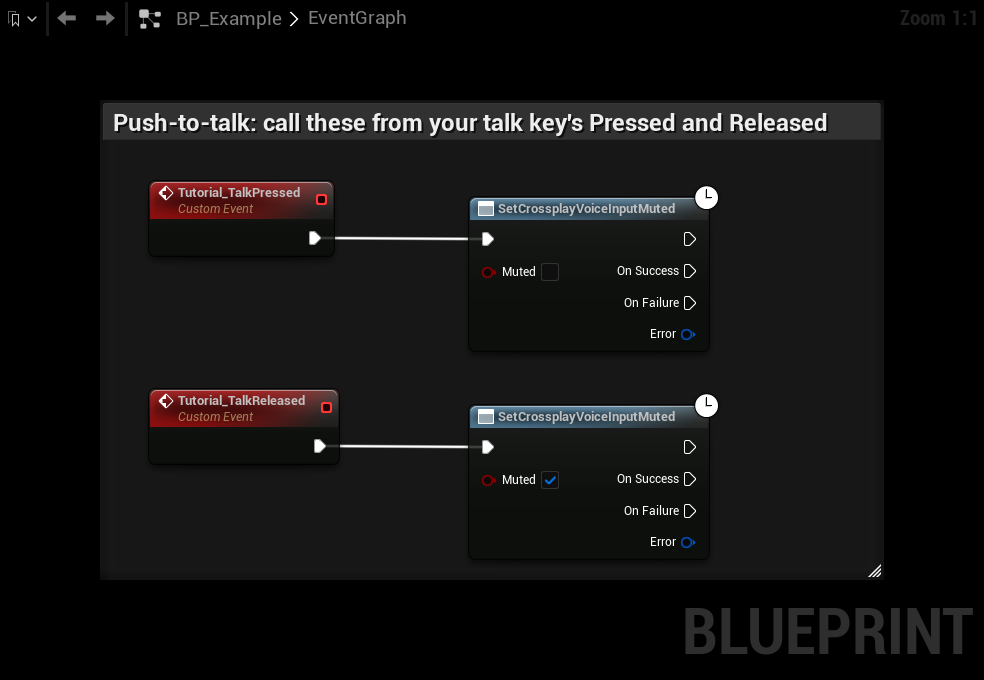
- SetCrossplayVoiceInputMuted mutes the microphone. It also works before joining a lobby, so it can drive push-to-talk. Project Settings → Plugins → Crossplay → Voice → Voice Input Starts Muted starts every room muted.
- SetCrossplayVoiceMemberMuted and SetCrossplayVoiceMemberVolume only change what the local player hears. Volumes are scales: 1 is unchanged, 0 is silent, 2 is twice as loud.
- An empty device id is the system default.
- Is Voice Input Muted returns the microphone state, so a UI can show it.
Events
- On Voice Connection Changed: voice is connected or disconnected. Is Voice Connected returns the current state.
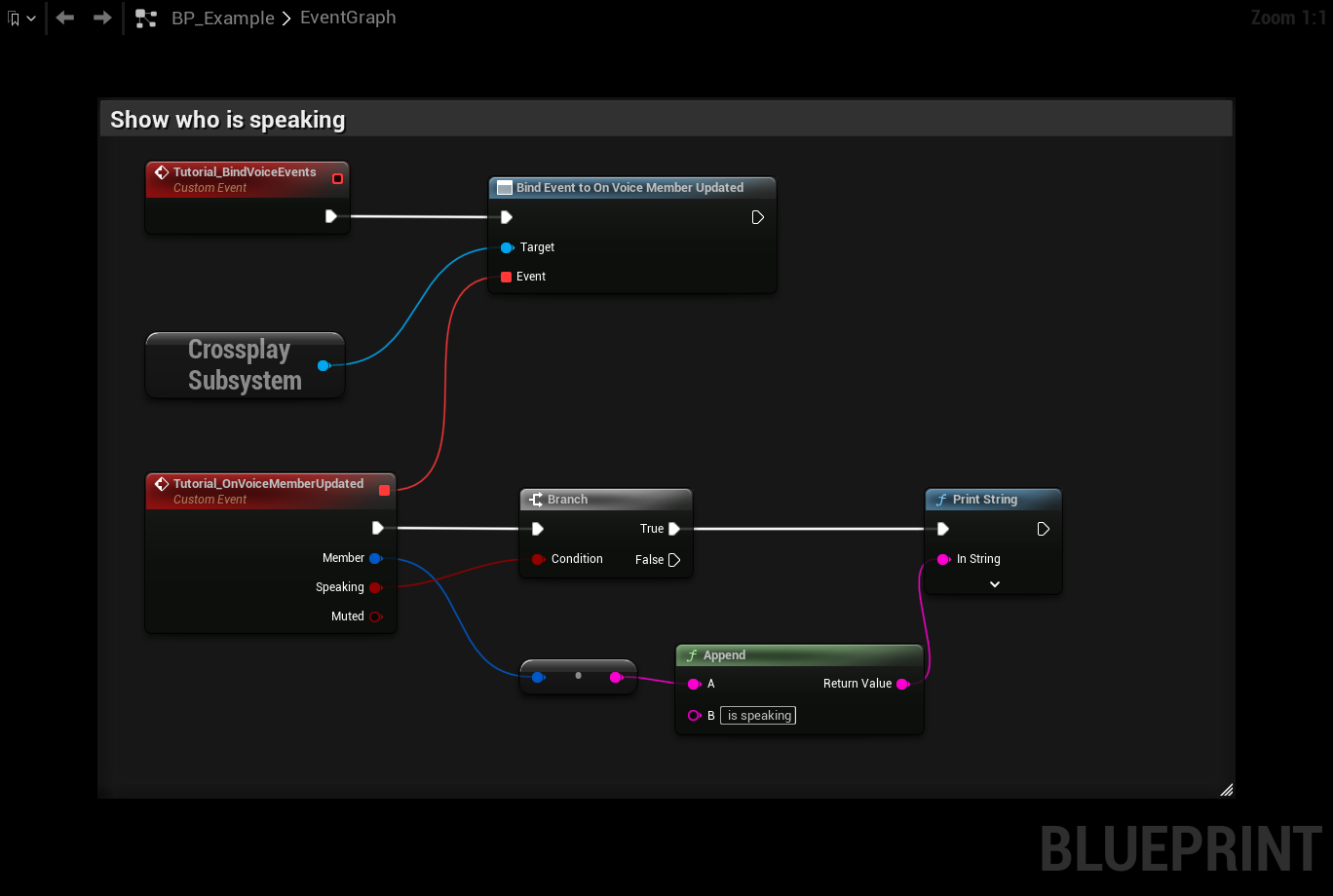
- On Voice Member Updated: a member started or stopped speaking, or muted their microphone. In a match, muted is only known for the local player.
- On Audio Devices Changed: a microphone or speaker was added or removed (EOS only).
Push-to-talk: call SetCrossplayVoiceInputMuted with Muted off when the talk key is pressed, and on when it is released.
A speaking indicator: bind On Voice Member Updated once and show who is speaking.
Testing
Voice needs two computers with a microphone each. Log lines like No Audio Capture implementations found and
StartLocalProcessing returned 0xFFFFFFFF before the match has started are harmless. In a match, the log shows
RegisterRemoteTalker(...) returned 0x00000000 for every other player.