Starting a match
A lobby is where players meet. StartCrossplayMatch takes them from the lobby into a networked game: the owner hosts a listen server over P2P, and the other members travel to it.
StartCrossplayMatch
- The lobby owner calls StartCrossplayMatch with a map. An empty map means the current map. The map opens as a listen server on EOS P2P, and the owner's address is written to the lobby (Match Address).
- The other members get On Match Starting with the Lobby Id and the address, and travel to the owner by themselves. Members who are already in a networked game (playing or hosting) are left where they are and get no event.
Only the owner can start the match. Others get Invalid Parameters.
See Tutorial 5 for the graph step by step.
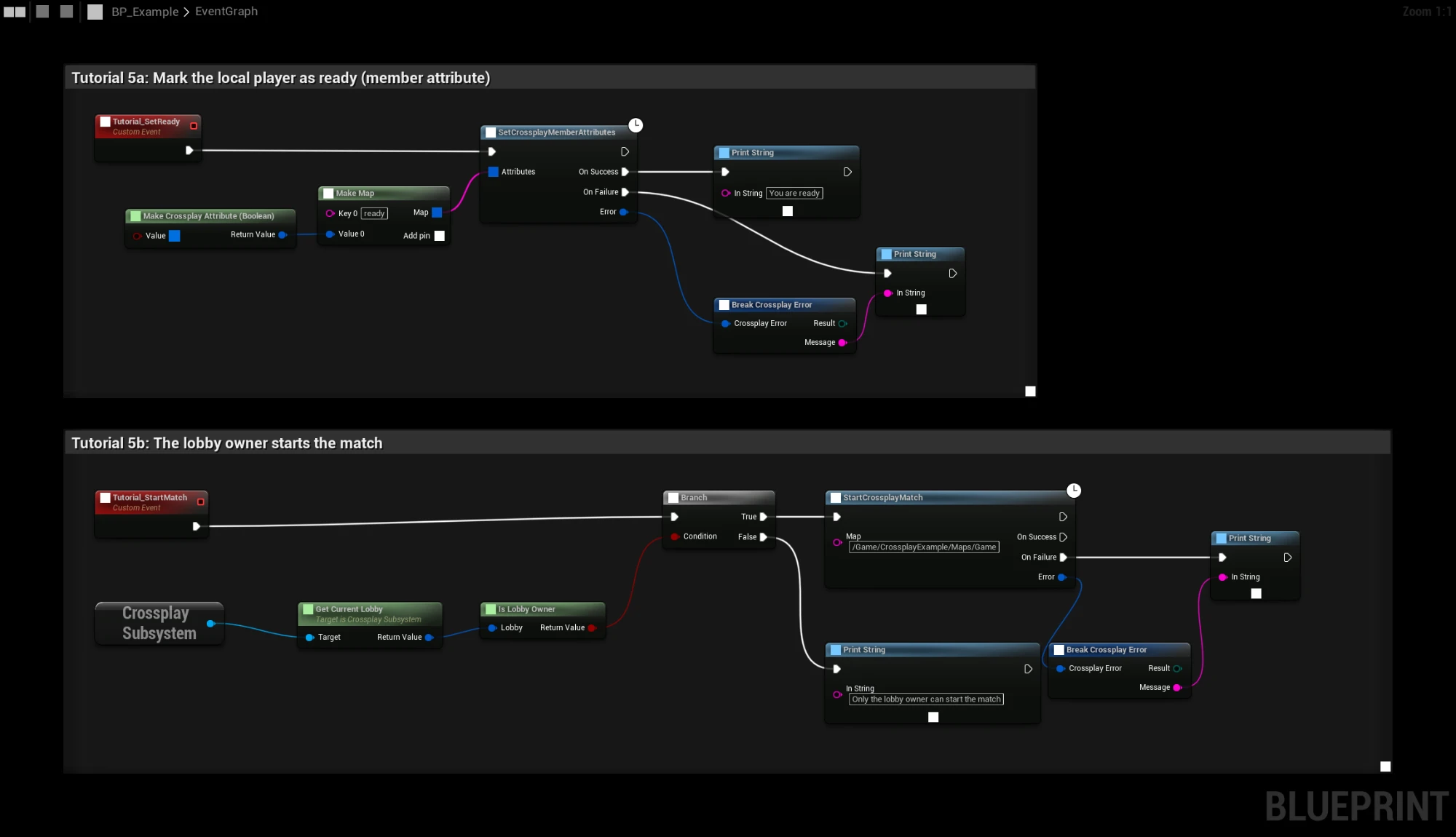
The result of StartCrossplayMatch arrives after the map change. Handle it in the GameInstance, or bind to the subsystem's events, not in a level Blueprint that is gone after the map change.
Joining yourself
Turn off Project Settings → Plugins → Crossplay → Match → Auto Join Match to decide when members travel. Then call Join Match on the subsystem from On Match Starting, for example after a countdown. It returns false when the lobby has no match.
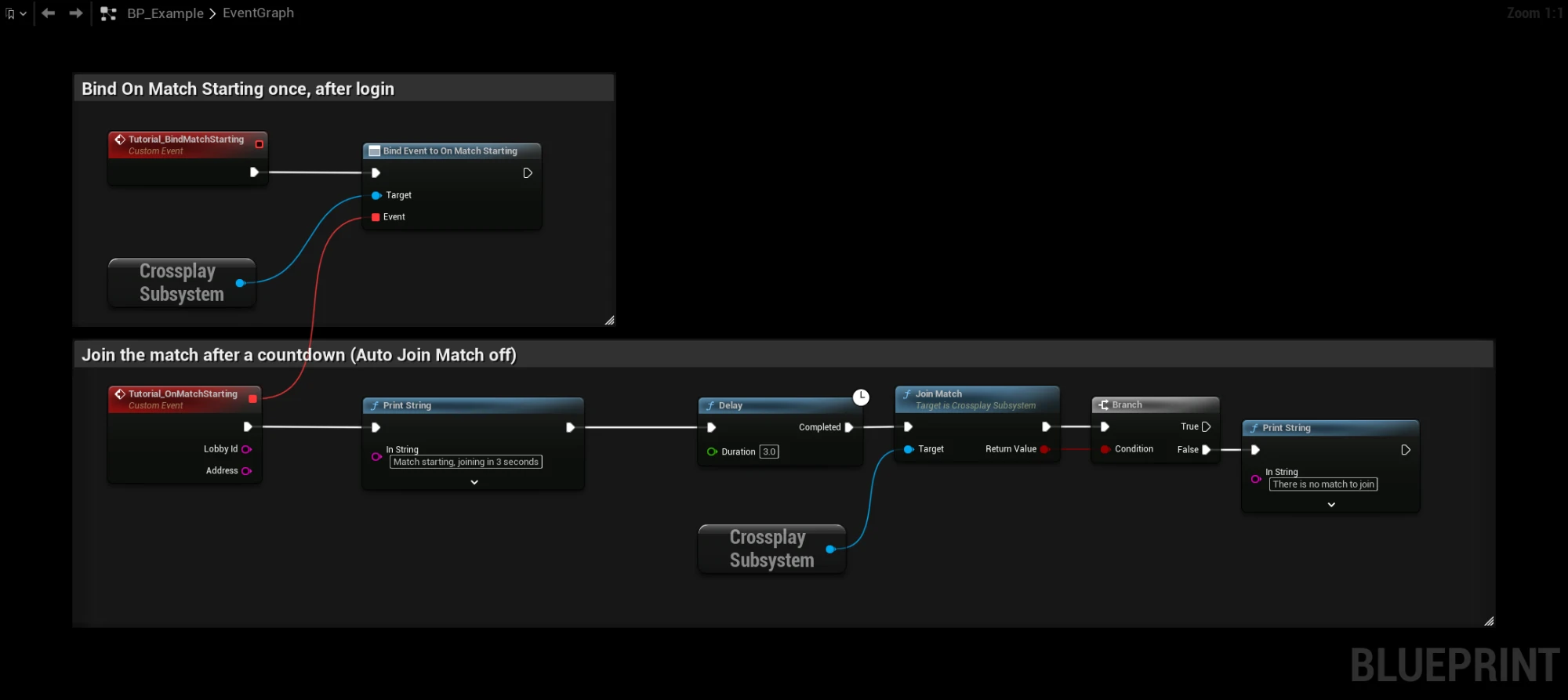
Players who join the lobby after the match has started travel to it as well (or get On Match Starting when Auto Join Match is off).
Ending a match
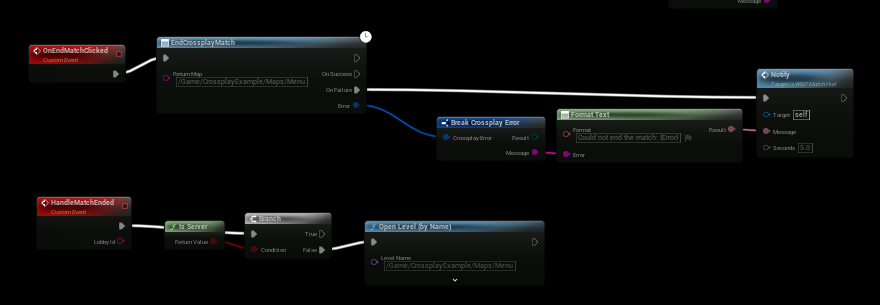
The lobby owner calls EndCrossplayMatch to end the match and keep the lobby. The match address is removed from the lobby, so StartCrossplayMatch can be called again.
- Return Map: the map the owner travels to. Empty means the owner stays where they are.
- Everyone in the lobby gets On Match Ended with the Lobby Id.
- The members don't travel by themselves. Open your lobby map from On Match Ended; otherwise the engine takes them to the default map when the host's server goes away.
Only the owner can end the match (Not Owner). When the lobby has no match, it fails with Invalid Parameters.
In the example's match HUD, the owner ends the match and returns to the menu, and the members open the menu from On Match Ended:
No ports, no config
The plugin uses the engine's SocketSubsystemEOS and switches the game net driver to NetDriverEOS when the match
starts, so no DefaultEngine.ini changes are needed. Connections go through EOS relays when a direct connection is
not possible, so no ports have to be opened.
The project's own net driver comes back when the player is in a standalone map again with no match running in the lobby, for example after leaving the lobby and returning to the menu, so later LAN or IP games work as before. While the lobby's match is running, the P2P driver stays, so a client that loses the host can become the new host on the same network (host migration).
Requirements
- Windows or Mac. See Linux.
- An EOS platform from CrossplayCore, EOSCore or OnlineSubsystemEOS. See Where the EOS platform comes from.
- In Steam lobbies the match runs over Steam P2P instead.
When P2P is not available for the lobby, StartCrossplayMatch fails with Not Supported.
Linux
The engine has no EOS P2P socket subsystem (SocketSubsystemEOS) for Linux, so matches over EOS P2P don't work
there. On Linux, StartCrossplayMatch in an EOS lobby fails with Not Supported, and a Linux player can't
join a match over EOS P2P that a Windows or Mac player hosts.
Login, EOS lobbies, friends, presence, invites and voice chat work on Linux. For matches on Linux, use Steam lobbies, where the match runs over Steam P2P.