Invites and join requests
There are two ways a player ends up in a friend's lobby:
- An invite arrives in the game. You show it in your UI, and the player accepts it with JoinCrossplayLobby.
- A join request means the player has already chosen to join from outside the game, in the Steam overlay or the EOS overlay. The plugin joins the lobby by itself.
In-game invites (EOS)
SendCrossplayInvite with the friend's Crossplay User Id invites them to the current lobby. The friend gets On Invite Received with the Lobby Id and the sender, shows it, and calls JoinCrossplayLobby to accept. This works for Invite Only lobbies too.
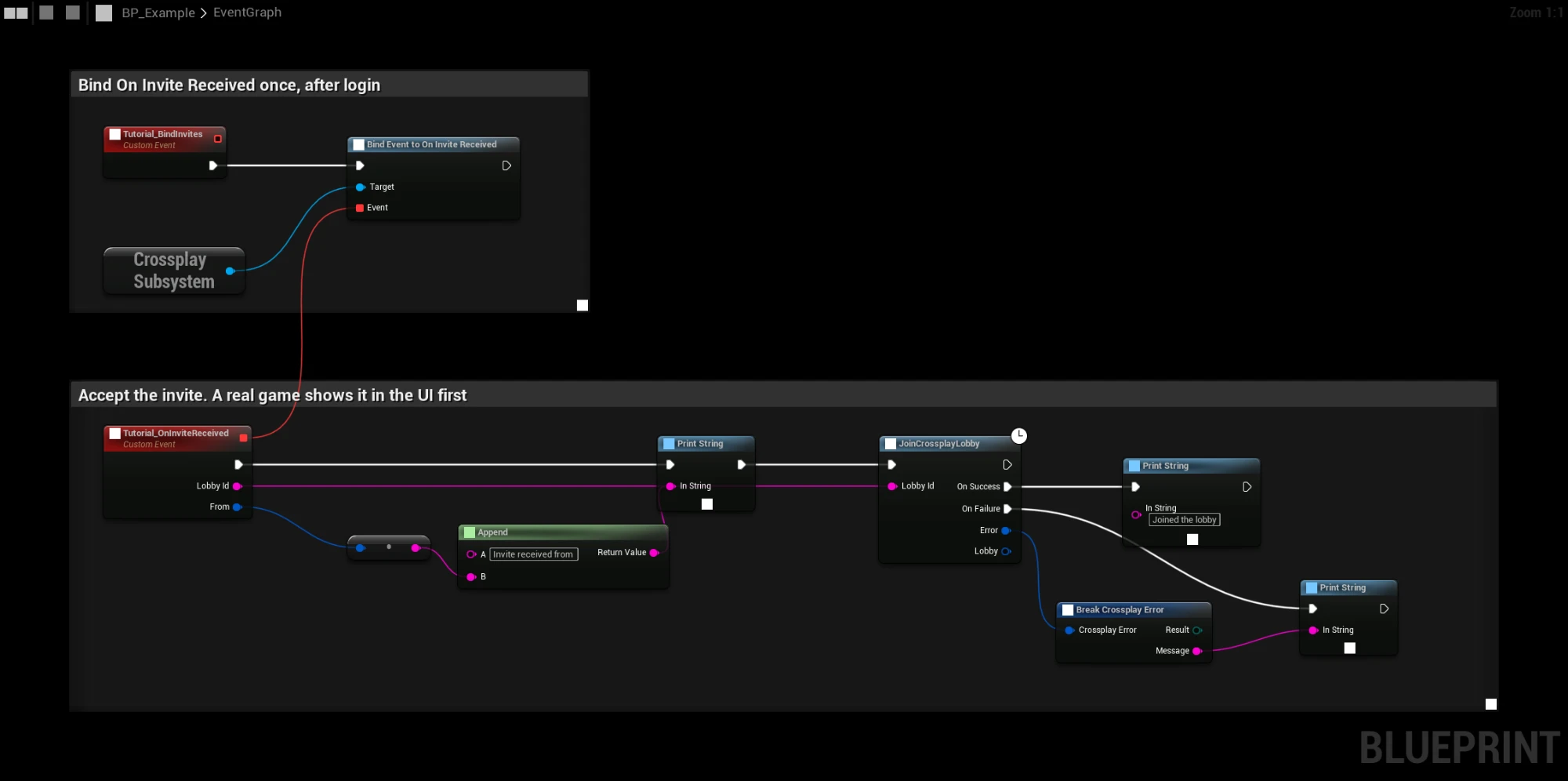
- Invites sent while the friend was offline arrive right after their next login, but only if the lobby still exists. Old ones are rejected. The sender of such an invite is the lobby owner.
- Joining a lobby removes the invites to it.
Pending invites
Get Pending Invites lists the invites the player has received but not joined or rejected. Each Crossplay Invite has the Lobby Id and From, the sender. Use it to build an invite list in your UI, with GetCrossplayLobby for details about each lobby.
Reject Invite with the Lobby Id removes an invite. For EOS invites it also rejects the invite in EOS. It returns false when there is no such invite.
Inviting by Steam or Epic account
SendCrossplayInvite also accepts a user with only a Steam or Epic account id, made with Make Platform User Id. The plugin looks up the Product User Id first. A player who has never logged in to the game with crossplay gives Not Found: use Show Invite Overlay for them instead.
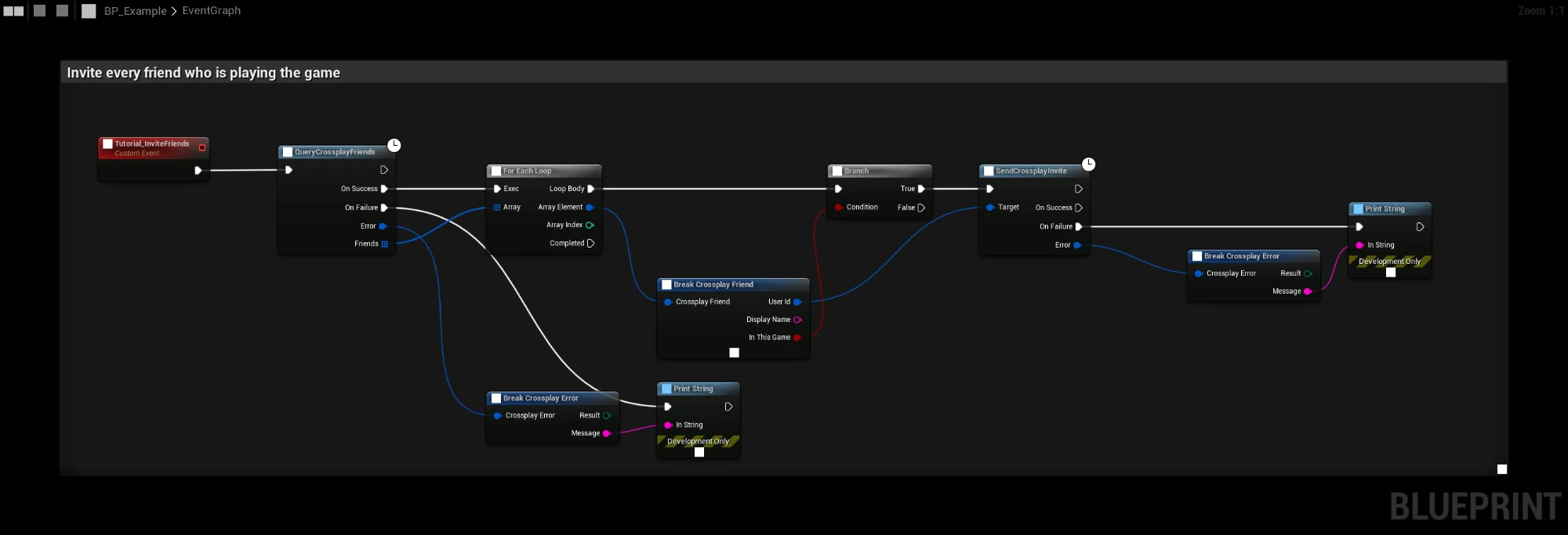
QueryCrossplayFriends already fills in the Product User Id of every friend who plays, so the friends it returns can be passed straight to SendCrossplayInvite. See Friends and presence.
Steam overlay invites
Show Invite Overlay opens the Steam invite dialog for the current lobby. It works for EOS lobbies too: the invite
carries a connect string (+crossplay_lobby <id>), so Steam friends who accept land in On Join Requested with the
EOS lobby. It returns false when the player is not in a lobby or Steam is not running.
For Steam lobbies, SendCrossplayInvite with a Steam user sends a Steam lobby invite, which arrives as On Invite Received.
Steam friends list
While the player is in a lobby, the plugin sets the Steam rich presence key connect (+crossplay_lobby <id> for
EOS lobbies, +connect_lobby <id> for Steam lobbies) and clears it when the lobby is left. This turns on
Invite to Game and Join Game in the Steam friends list and overlay, for the whole time in the lobby, matches
included. Your game does not have to call anything. Both arrive at the friend as a join request.
The log shows Steam join presence '+connect_lobby <id>': set when it is set.
Join requests
A join request comes from:
- Join Game or Accept invite in the Steam overlay or friends list,
- an invite accepted in the EOS overlay,
- the command line, when Steam starts the game from an invite (see below).
The plugin fires On Join Requested with the Lobby Id and whether it is a crossplay lobby, then leaves the current lobby and joins the new one. If the join fails, for example because the lobby is gone, On Join Request Failed fires with the reason.
Turn off Project Settings → Plugins → Crossplay → Lobbies → Auto Accept Join Requests to call JoinCrossplayLobby yourself from On Join Requested.
Starting the game from an invite
When a player accepts an invite while the game is not running, Steam starts the game with +crossplay_lobby <id>
(or +connect_lobby <id> for Steam lobbies). The plugin reads it at startup.
Join requests that arrive before login are kept, and On Join Requested fires right after Crossplay Login. The game only has to log in as usual. A Steam lobby is joined even when the EOS login failed; an EOS lobby waits for a successful login.
Steam starts the game that is installed for the App ID. Use your own Steam App ID and test with a build uploaded to it. With Spacewar (480), accepting an invite while the game is not running starts Spacewar.